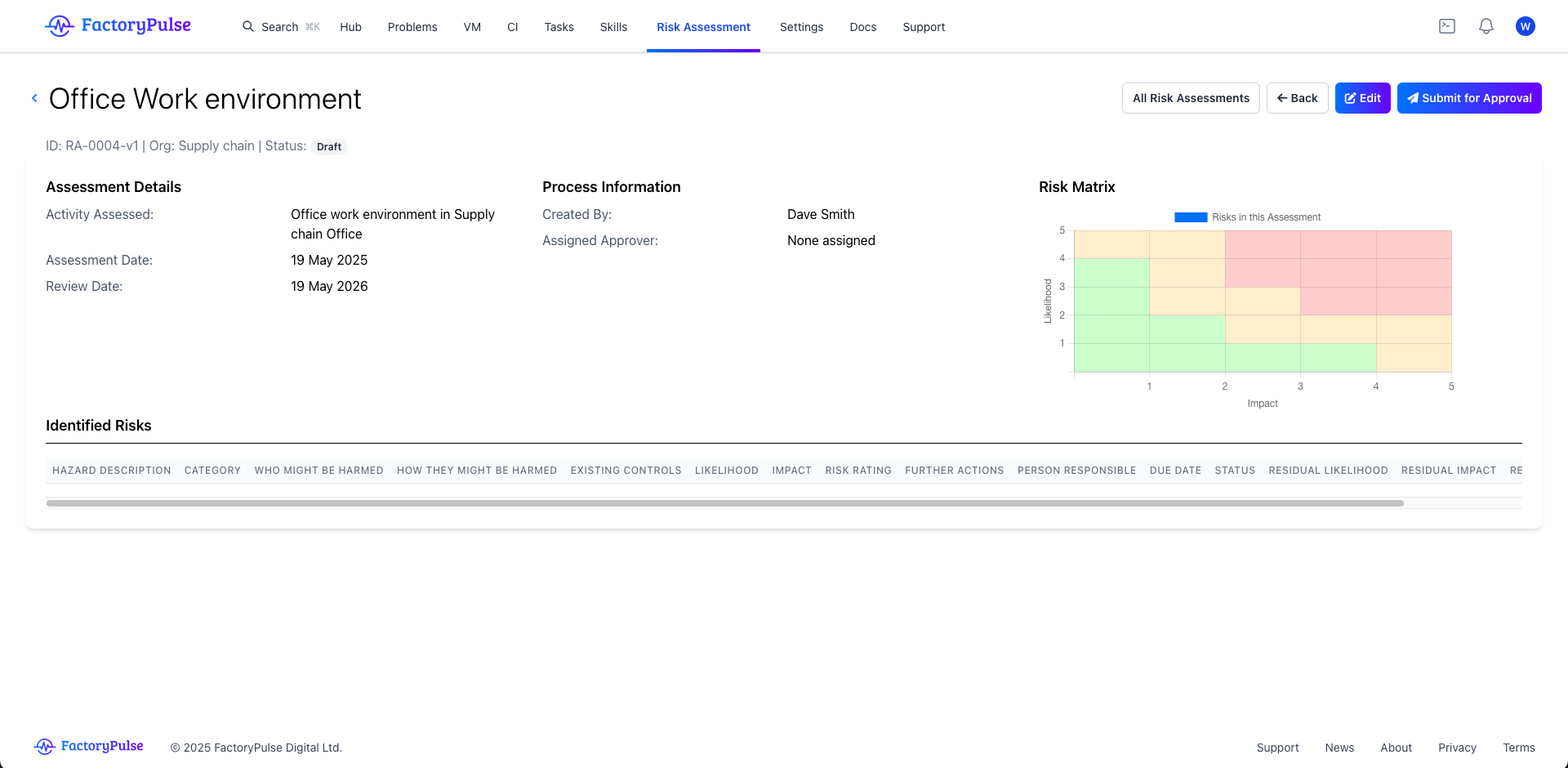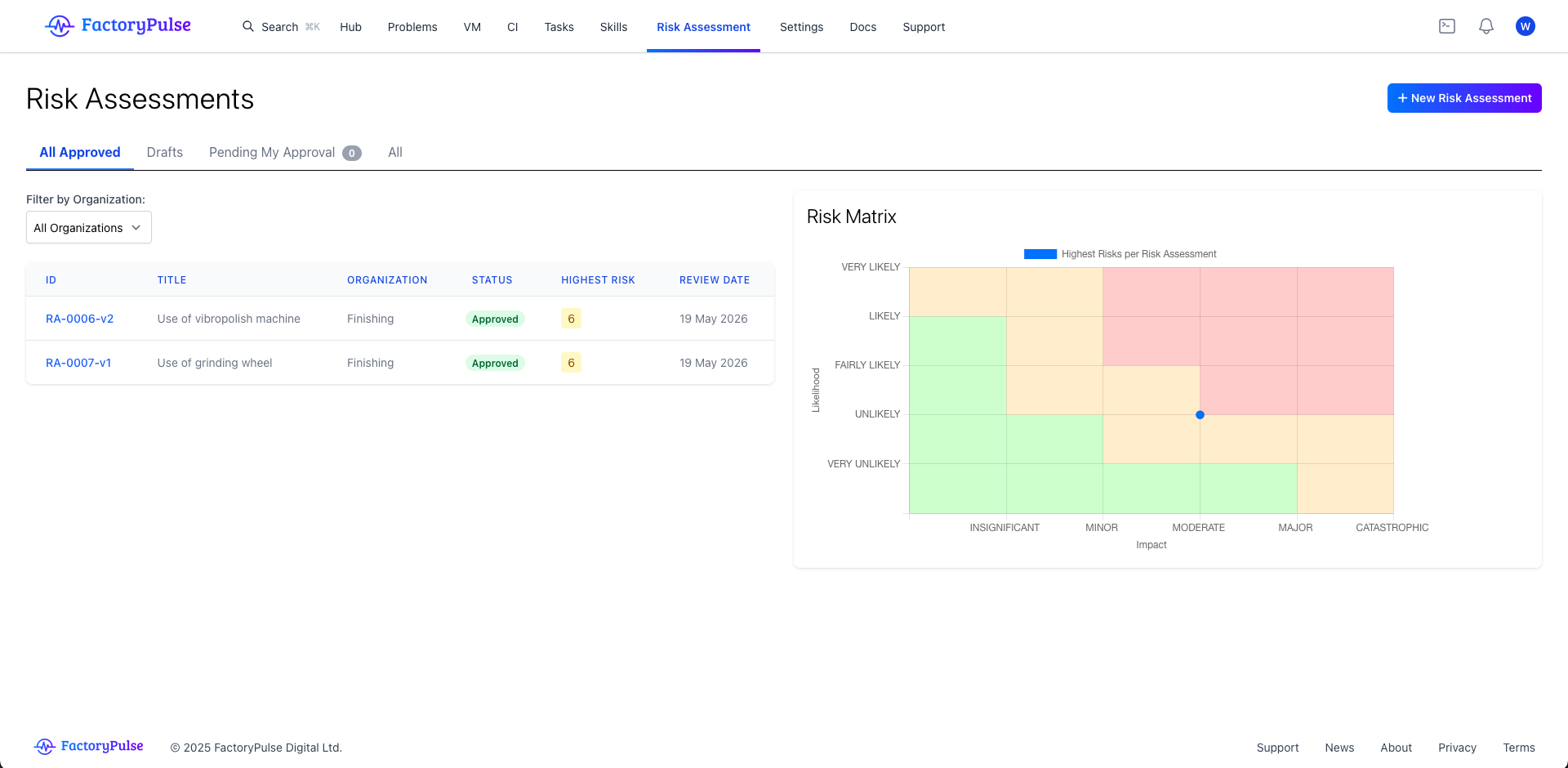
Creating a new risk assessment
To create a new risk assessment, just click on the “New Risk Assessment” button at the top of the risk assessments page. This will open a page where you can enter the risk assessment details, to get started you only need to enter a title, description of the activity and organisation. The rest of the details can be populated later if you need to. Once you press save on this initial page it will create the draft risk assessment and you can then add individual risks at the bottom of the page. This page will automatically save as you add each risk so there is no need to press save again.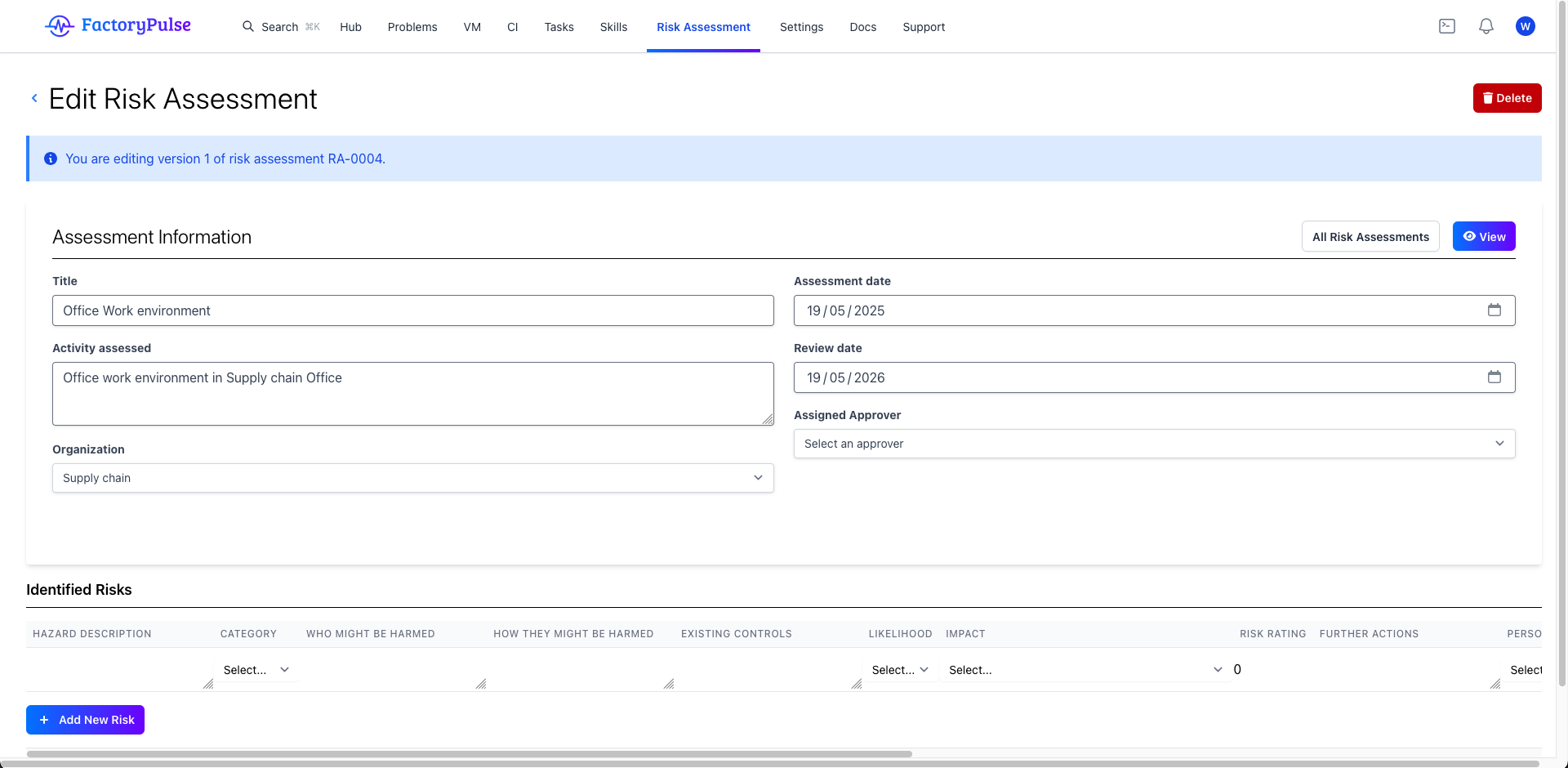
Viewing a risk assessment
To view the detail of a risk assessment, just click on the risk assessment card. This will open a page where you can see the risk assessment details, see tasks and see the latest updates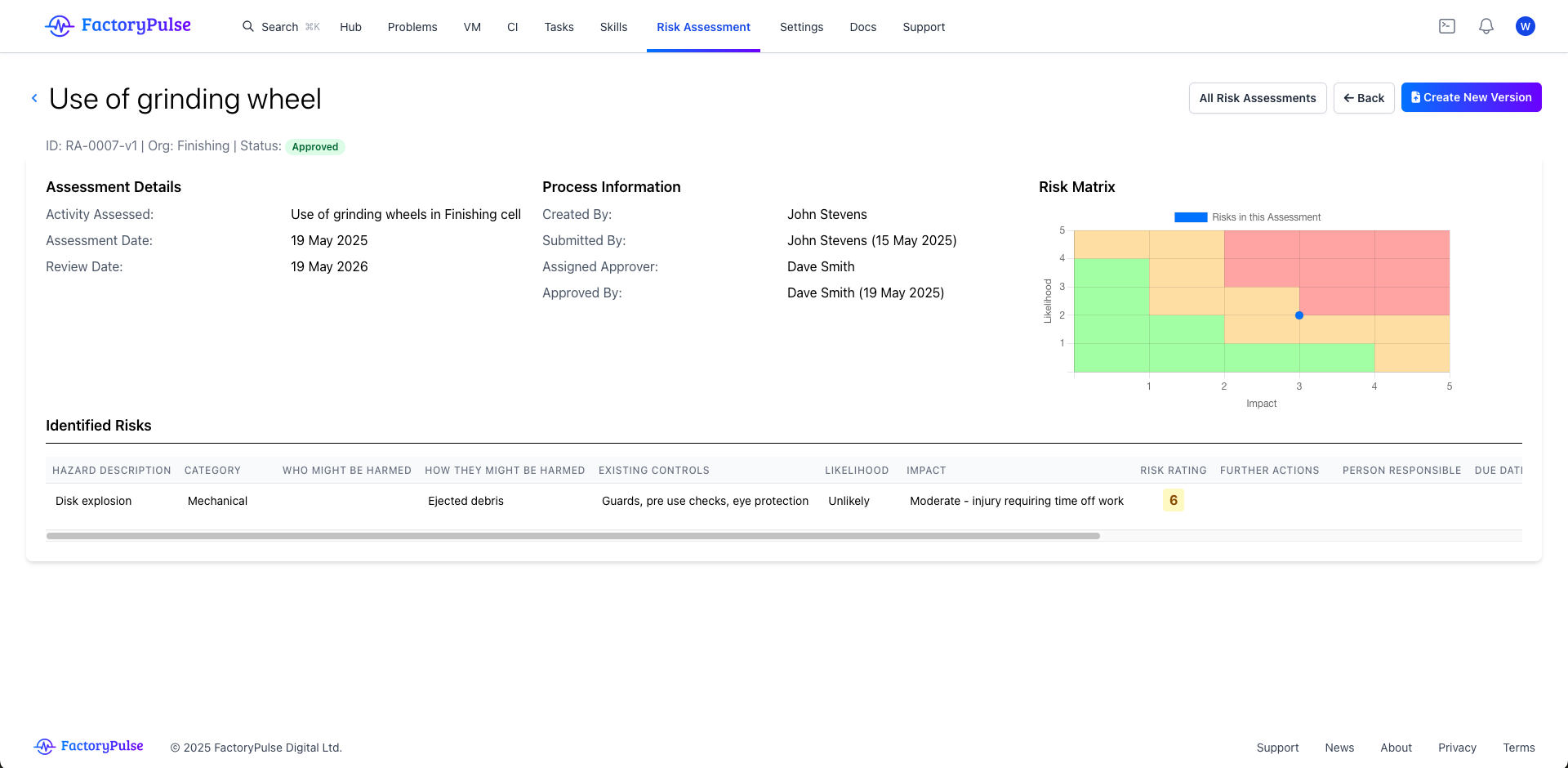 From here you can add the latest updates to keep everyone in the loop. Add actions to the project to help progress the project and edit the project charter. You can also flag the project as on hold with the hold button.
To edit the charter, just click on the edit button at the top of the charter section.
From here you can add the latest updates to keep everyone in the loop. Add actions to the project to help progress the project and edit the project charter. You can also flag the project as on hold with the hold button.
To edit the charter, just click on the edit button at the top of the charter section.
Approving a risk assessment
To approve a risk assessment, just click on the submit for approval button at the top of the page. This will send the risk assessment to the user specified as the approver in the risk assessment details.